Integrating Augmented Reality into Food Live Broadcasts
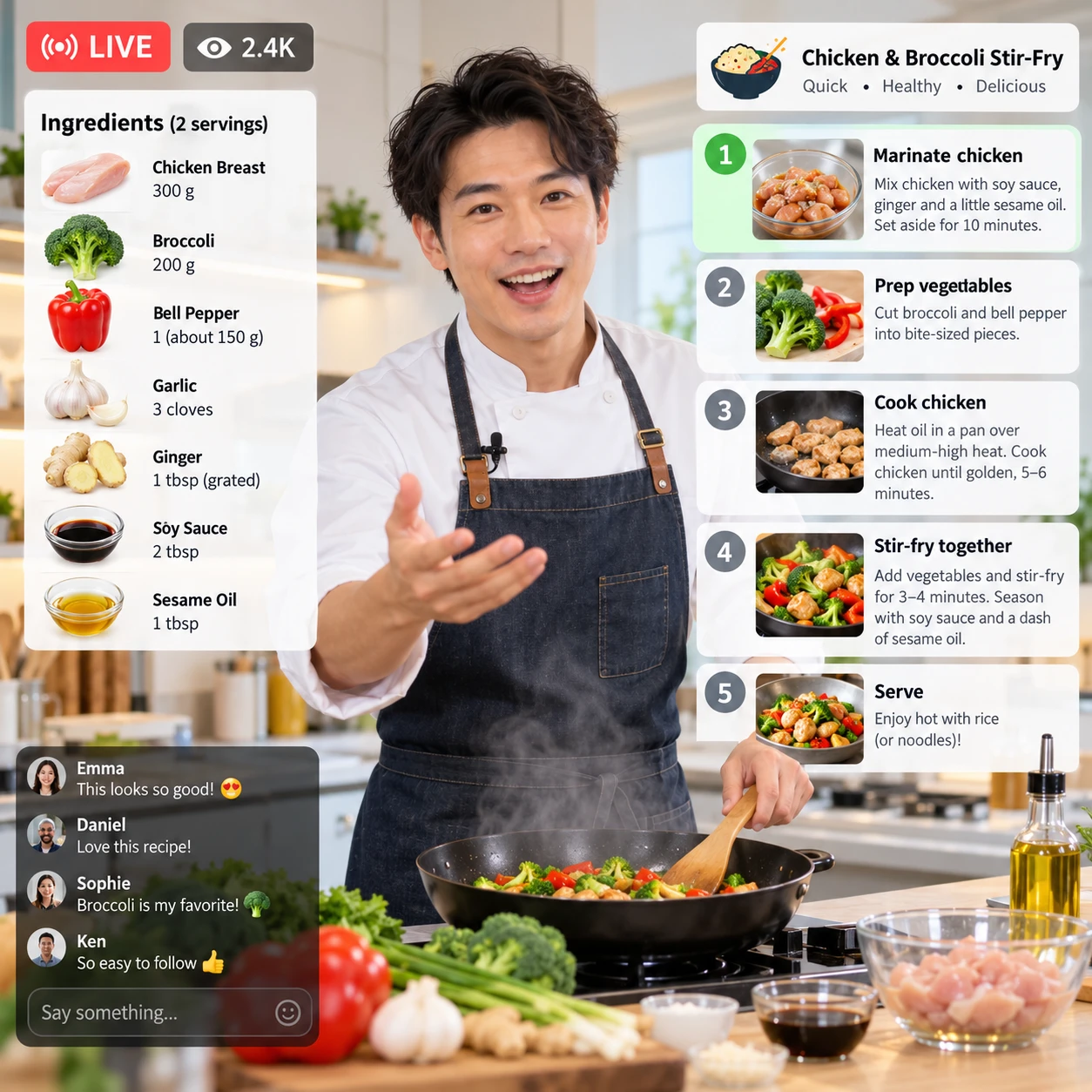
Augmented reality (AR) can make a food live stream easier to follow by placing useful digital information alongside the real cooking action. Ingredient labels, recipe steps, and timers can help viewers keep up without forcing them to pause the broadcast or search through a separate recipe page.
The key is restraint. AR should support the host’s explanations and keep the dish visible, not compete with the cooking. A carefully planned overlay can clarify what is happening at the counter; too many graphics can make even a simple recipe hard to watch.
What AR Adds to a Food Live Stream
AR adds digital information to a live camera view, helping viewers understand ingredients, techniques, and timing as a dish comes together. In a food broadcast, the most useful overlays answer a question at the moment it arises.
For example, when a host reaches for a bowl of chopped herbs, an ingredient label can show its name and quantity. A short step-by-step cooking instruction can appear while the host mixes, folds, or seasons. These cues give viewers more context without interrupting the demonstration.
AR can also support viewer interaction. A host might ask viewers to vote on a garnish or choose between two suggested toppings, then display the result on screen. Keep these features optional: the recipe should remain understandable for someone watching passively or joining midway through.
AR does not improve a stream if the camera angle is poor, the instructions are unclear, or the host moves too quickly. Strong cooking content, a clear view of the work surface, and good audio still do most of the teaching. Think of AR as a second layer of explanation, not a substitute for a well-paced demonstration.
AR Features That Work Well for Food Content
The most useful AR features for food content show ingredients, explain the current step, or make timing and choices easier to follow. Use a feature only when it helps viewers cook or understand the dish.
- Ingredient callouts: Display an ingredient name and quantity near the relevant bowl or container. Keep the label brief, such as “1 tsp cumin,” and avoid covering the food.
- Step-by-step cooking instructions: Show one short action at a time, such as “Fold in the berries” or “Simmer until thick.” A full recipe paragraph is too much to read while watching a live stream.
- Timers and temperature cues: Use a visible countdown for resting, baking, or simmering. State the temperature unit clearly, and have the host say the timing aloud in case a viewer misses the graphic.
- Substitutions: Offer practical alternatives, such as a dairy-free option or a suggested herb swap. Mark these as optional so viewers know which ingredients form the base recipe.
- Interactive prompts: Invite a simple poll or question, then share the response at a natural pause. Avoid prompts during knife work or other moments that need the host’s full attention.
Keep labels consistent from one part of the recipe to the next. Viewers should be able to recognize an ingredient label or timer at a glance. The more a graphic changes position, color, and wording, the more attention it takes away from the dish.
Planning an AR-Enhanced Broadcast
To plan an AR-enhanced broadcast, start with the recipe and decide what information viewers need at each stage. Then choose overlays that fit the show format, audience, and production setup.
A useful planning method is to map the recipe in three passes: action, information, and timing. First, list the visible cooking actions. Next, identify where viewers might need a quantity, technique, or substitution. Finally, decide when each graphic appears and disappears.
For a live pasta demonstration, for instance, an ingredient label can appear when the host introduces the sauce components. A step cue can show “Reserve ½ cup pasta water” before the pot is drained. A timer can count down while the sauce simmers, then vanish when the host returns to the camera. Each graphic earns its place by solving a specific viewing problem.
Also plan for the audience’s experience. A beginner-focused stream may need measurements and technique cues; an experienced audience may prefer fewer prompts and more close-up detail. Write the host’s spoken explanation and overlay text together, so the graphic complements the narration rather than repeating a long sentence.
Build a simple cue sheet with the scene, overlay, trigger, and removal point. In a live production, this reduces missed graphics and prevents an ingredient label from lingering over the finished dish. It also gives the host a clear fallback: if an overlay fails, they can explain the information verbally.
Equipment and Software to Consider
You can add AR to a food broadcast with a camera or mobile device, suitable lighting, and streaming software that supports graphics or an AR workflow. The exact setup depends on whether overlays are simple on-screen labels or camera-tracked elements.
A smartphone can work for a small kitchen stream, while a dedicated camera may offer more control over framing and focus. In either case, test the camera position with the host standing at the counter and moving between the cutting board, stove, and plating area. A stable, slightly elevated view often shows both the hands and the food more clearly than a tight face shot.
Use soft, even lighting to keep food colors readable and reduce glare on shiny bowls or pans. Check that the overlay remains visible against both light ingredients, such as flour, and darker backgrounds, such as a cast-iron pan. A small monitor can help the host or producer check the viewer-facing composition.
Streaming software may offer built-in graphics, scene layouts, or support for external AR tools. Check compatibility with your camera, operating system, and streaming platform before building a workflow around a feature. Simple ingredient labels may need only a graphics layer; tracking a label so it appears anchored to a moving bowl calls for more specialized tools and testing.
More equipment can add control, but it also creates more points of failure. Start with the simplest setup that meets the editorial need, and keep a clean camera scene available if the AR layer stops working.
Keeping AR Clear and Accessible
Keep AR clear and accessible by using a small number of readable overlays, protecting the food’s visibility, and providing essential information in more than one way. Graphics should work on a phone screen as well as on a large display.
Place overlays in a consistent area that does not cover the host’s hands, the cooking surface, or the finished dish. Use short phrases, high contrast, and text large enough to read at mobile size. Check the layout in a portrait and landscape preview if viewers may watch on both types of screens.
Accessibility matters in a live stream, where viewers may watch without sound, have low vision, or need more time to process instructions. Add captions for spoken content where the platform or production workflow supports them. Do not rely on color alone to distinguish ingredients or indicate a completed step; pair color with a word, symbol, or clear label.
Keep spoken instructions aligned with on-screen text. If the host says “add the lemon zest” while the overlay names the ingredient and quantity, viewers can follow through either channel. But dense captions and multiple AR panels can overwhelm the screen, so prioritize the recipe information that matters at that moment.
A useful test is to watch a short recording on a phone from arm’s length. If a viewer has to pause to read a label, or the overlay hides the food during a key technique, simplify the graphic or move it.
Testing and Improving the Viewer Experience
Test AR overlays before going live by checking their timing, legibility, placement, and behavior during the cooking actions. A short rehearsal can reveal problems that are easy to miss while designing graphics on a desktop.
Run through the recipe at realistic speed. Check whether overlays appear when the relevant ingredient or technique is on camera, and whether they disappear before the next step begins. Test common interruptions too: a host pauses to answer chat, changes camera views, or needs to repeat an instruction.
Ask a colleague to watch the rehearsal on a phone and answer three practical questions: What is the host doing? What information is on screen? Can you still see the food? Their answers reveal whether the overlays add clarity or simply add visual noise.
After the broadcast, review audience questions, chat activity, and viewer feedback. Repeated questions about quantities may point to a label that appeared too briefly; comments that the dish was hard to see may mean the graphic was too large or poorly placed. Treat these signals as clues, not proof that one design choice will work for every audience.
Change one or two elements at a time, such as label duration or position, so you can judge the effect in the next stream. Keep the cooking explanation strong and the fallback plan ready. That way, AR remains helpful even when the technology or live conditions are less than perfect.
Frequently Asked Questions
What AR overlays are most useful in a cooking live stream?
Ingredient labels, concise step instructions, timers, and optional substitutions are usually the most practical. They answer common cooking questions while leaving room for the food and host to remain central.
Do I need special equipment to add AR to a food broadcast?
Not always. A mobile device or camera and streaming software with graphic support may be enough for basic overlays. Camera-tracked AR features can require more specialized tools, so check compatibility and test the setup before relying on it live.
How can I keep AR graphics from obscuring the food?
Place graphics in a consistent clear area, use short text, and check the layout on a phone. Rehearse the host’s movements and remove overlays during close-ups or techniques that need an unobstructed view.
Can viewers interact with AR features during a live stream?
Yes. Hosts can use chat prompts, polls, or audience choices to shape a garnish or substitution discussion. The interaction usually happens through the streaming platform, while an AR overlay displays the prompt or results; keep participation optional and the recipe easy to follow without it.